Textify
Drop image to upload
Add Text to Image Online for Free
Unleash your creativity with our powerful and free online tool to add text to image files. Whether you’re creating engaging social media posts, designing quotes, making memes, or adding watermarks, our editor gives you full control. With an extensive font library, advanced styling options, and a simple layer-based system, you can bring your vision to life instantly, right in your browser.
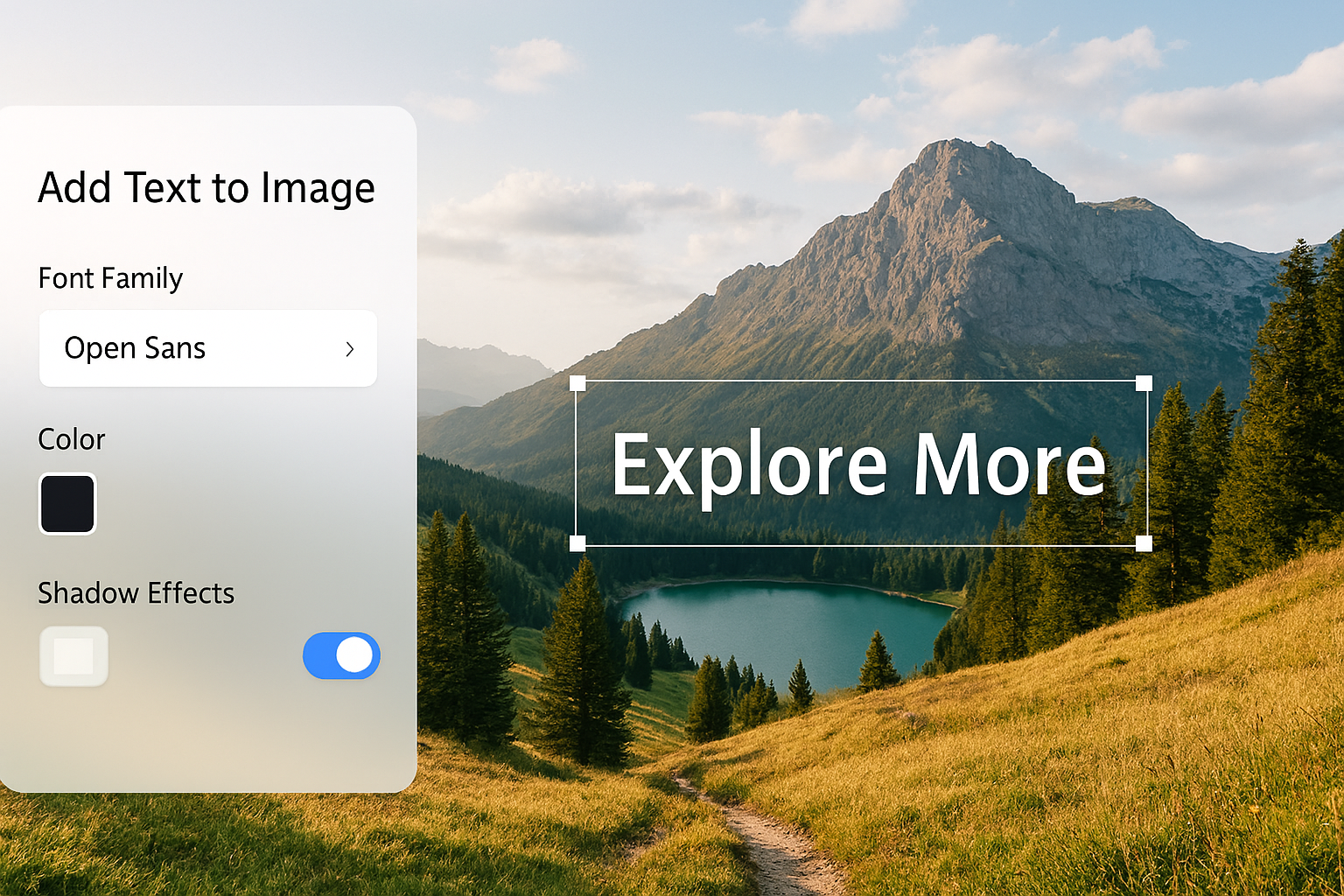
Key Features of Our Photo Text Editor
Extensive Font Library
Choose from dozens of high-quality fonts to perfectly match the mood of your image and message.
Full Layer Control
Add and manage multiple text layers with ease, giving you the flexibility of professional software.
Advanced Styling Options
Adjust font size, color, opacity, rotation, and add professional effects like outlines and shadows.
100% Private and Secure
Your images are processed directly in your browser and are never uploaded to our servers.
How to Add Text to an Image
It’s easy to add text to image files with our intuitive editor. Follow these simple steps:
-
Upload Your Image
First, click the “Upload” button or simply drag and drop your photo onto the canvas to get started.

-
Add and Style Your Text
Click “Add Text” to create a new layer. Use the toolbar to customize the content, font, size, color, and apply effects.

-
Position and Download
Drag your text to the perfect position. When you’re happy, click “Download” to save your final image.

OneToolStop vs. Other Online Editors
| Feature | OneToolStop Text Editor | Typical Online Editors |
|---|---|---|
| Cost & Ads | 100% Free & Unobtrusive Ads | Watermarks or premium features |
| Privacy | Client-Side (Stays on your device) | Requires server upload |
| Text Layers | Unlimited, with full control | Often limited to one text box |
| Fonts & Styling | Extensive library and advanced effects | Basic font selection |
Frequently Asked Questions
What image formats can I upload?
You can upload common image formats like JPG, PNG, and WebP. Our tool is designed to work with the photos and graphics you use every day.
Is there a limit to how many text layers I can add?
No, there is no limit! You can add text to image files with as many separate layers as you need. This allows you to create complex designs.
Will the downloaded image have a watermark?
Absolutely not. Our tool is completely free and will never add a watermark to your final image. What you create is what you get.
Can I use the fonts for commercial projects?
Yes. All fonts are from Google Fonts, which are open-source and licensed for both personal and commercial use. You can confidently use your creations for any project.
Explore More Creative Tools
After you add text to image files, you might need to optimize them further. Check out our free Image Compressor to reduce file size, or use our Image Converter to change the format. Explore our complete suite of free online tools and learn more about digital typography on Google Fonts Knowledge.