Save Image
Free Online Drawing Tool & Note Studio
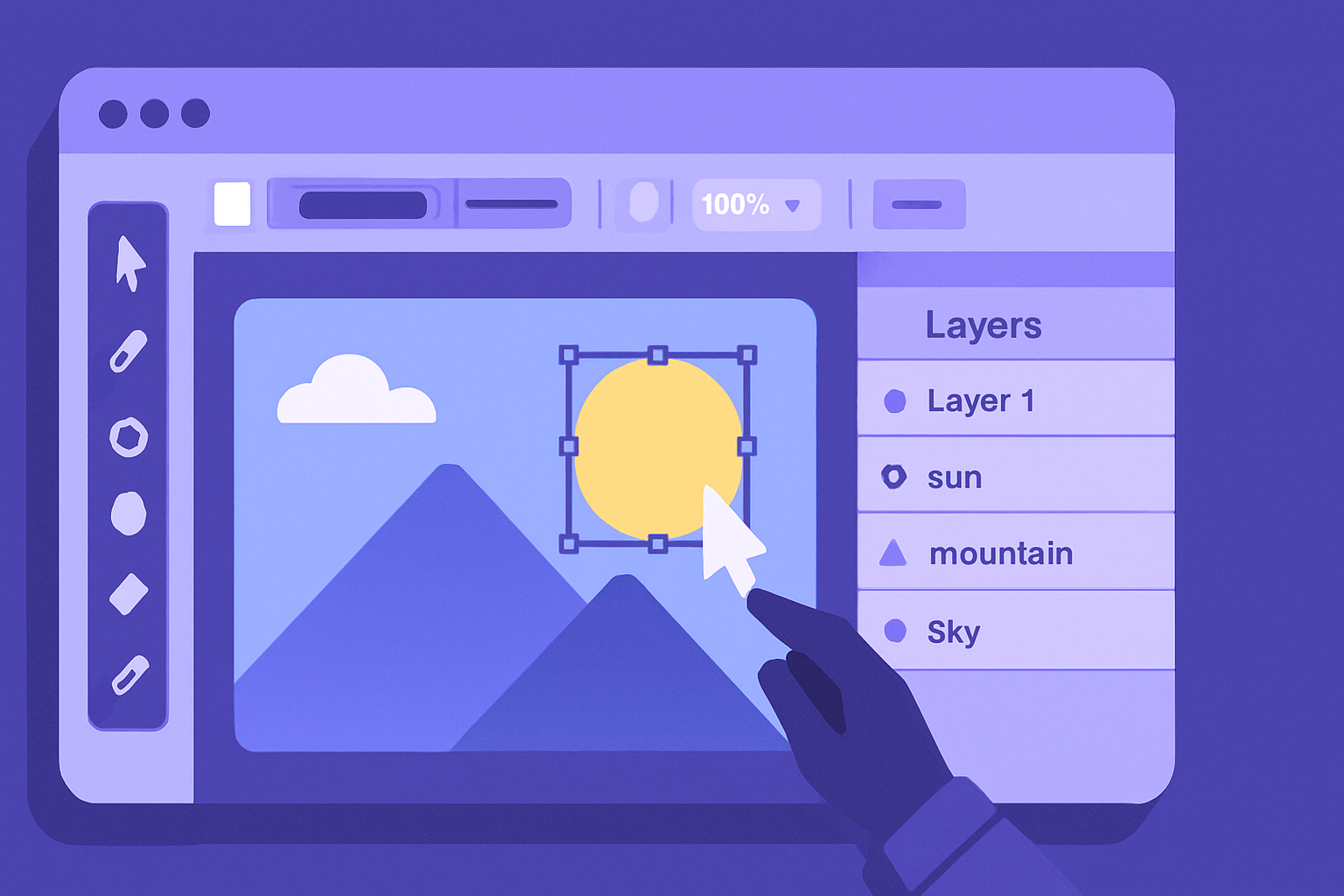
Unleash your creativity with our free online drawing tool. Perfect for sketches, vector illustrations, and visual note-taking, this app runs entirely in your browser. With a full suite of professional features like layers, shape tools, and a detailed properties inspector, bringing your ideas to life has never been easier.
Key Features of Our Drawing App
Full Layers Panel
Manage every element of your creation independently. Reorder, hide, lock, and delete layers with ease.
Advanced Vector Tools
Go beyond simple sketches with tools for selection, pen, shapes, and text. All objects remain editable.
Rich Properties Inspector
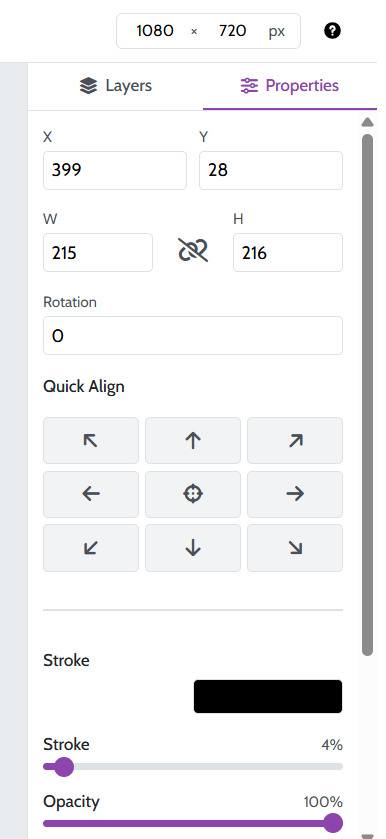
Fine-tune your work with precise controls for fill, stroke, opacity, corner radius, and other object properties.
Multiple Export Formats
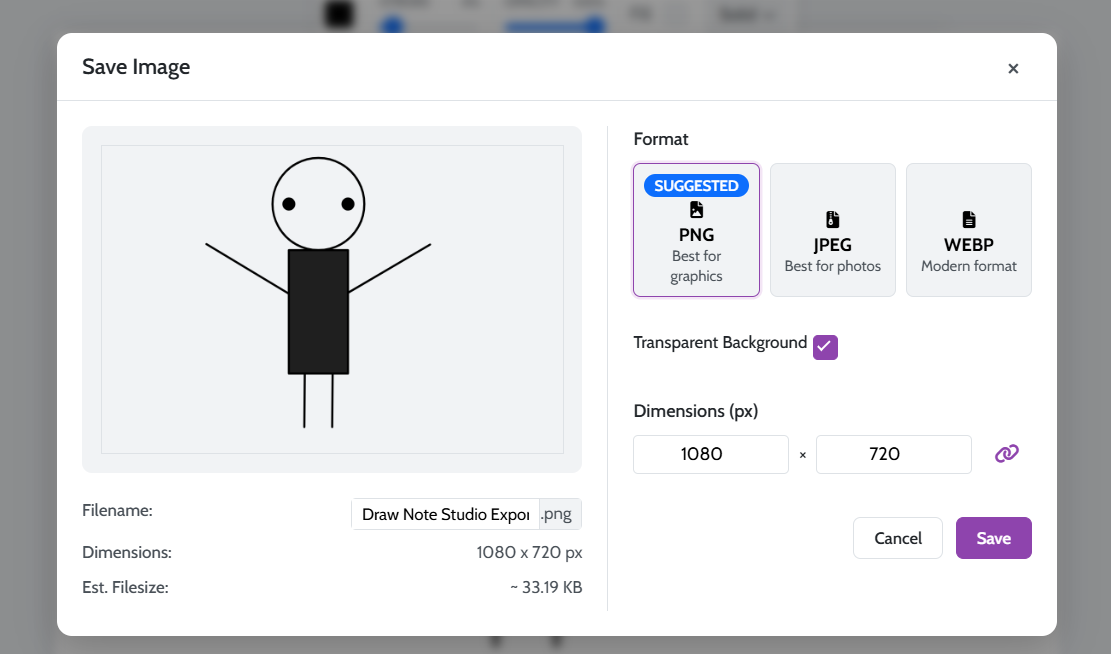
Save your artwork as a high-quality PNG (with transparency), JPG, or modern WebP file.
Time needed: 2 minutes.
Creating with our online drawing tool is simple and powerful. Here’s how to get started:
-
Draw Your Shapes
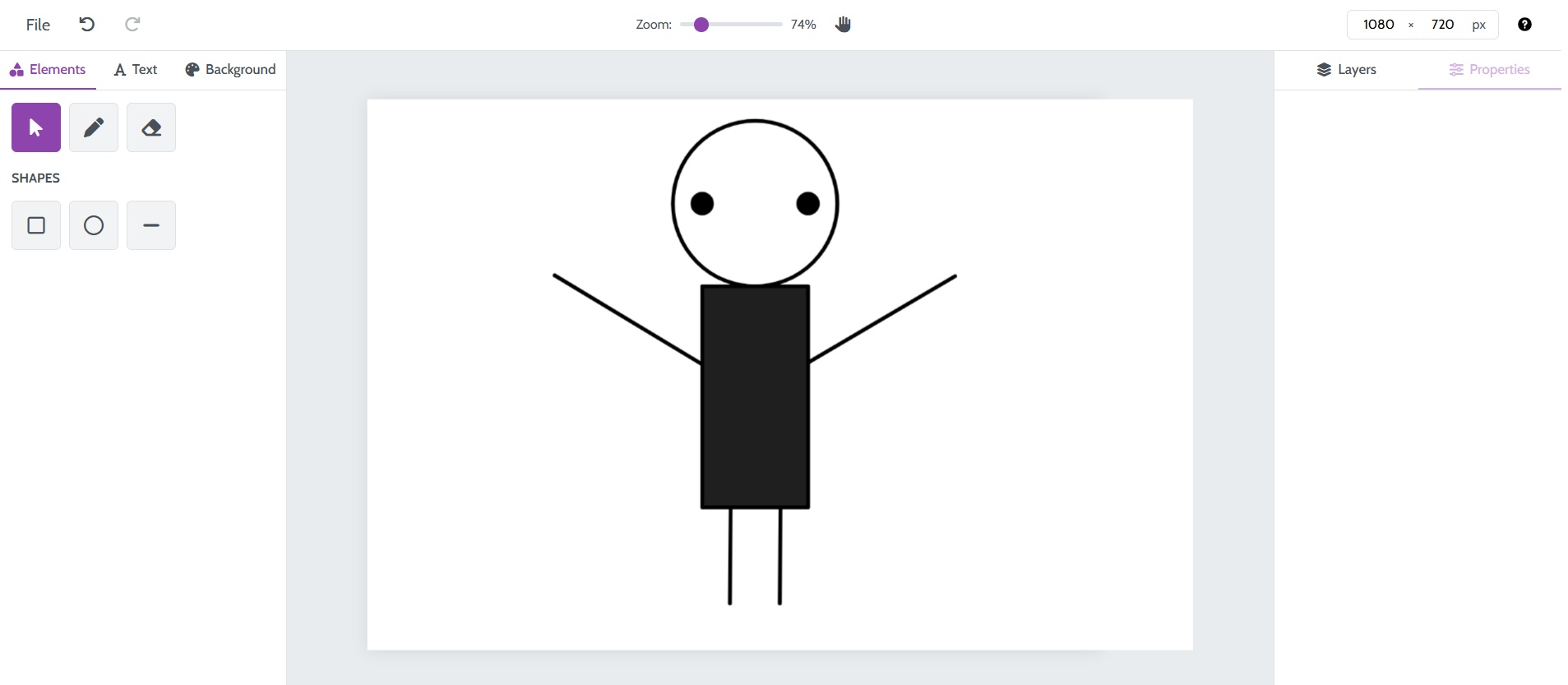
Select a tool from the left panel, such as the Pen or Rectangle. Click and drag on the canvas to create your element.
-
Edit Object Properties
Use the Select Tool to click on any object. The Properties panel on the right will appear, allowing you to change its color, stroke, and other attributes.
-
Save and Export
Go to the File menu and select “Save”. In the export window, choose your format (PNG, JPG, or WebP) and click the save button to download.
Frequently Asked Questions
Yes, our online drawing application is completely free to use. All features, including layers, advanced tools, and exporting, are available without any cost.
Absolutely. Your creations are saved to your browser’s local storage. Your data never leaves your computer, ensuring your work remains 100% private.
Yes, our online drawing tool includes a full layers panel. Each shape or text element is a separate object that you can select, reorder, lock, or hide individually.
Explore Our Other Tools
After finishing your drawing, explore our other creative utilities. Generate unique images with our AI Image Generator or overlay text with the Add Text to Image tool. To learn more about vector graphics, read the Wikipedia article.